

Oracle Integration Cloud (OIC) – How to Create a Scheduled Integration and Debug It with Logger
Oracle Integration Cloud (OIC):
How to Create a Scheduled Integration and Debug It with Logger
Oracle Integration Cloud (OIC) supports two ways to start an integration: Application triggered (fires on an event) and Schedule triggered (runs at dates/times you define). Schedule is what you use for bulk integrations and file processing jobs that need to run on their own, without waiting on an event.
Below are the steps to create one, add a Logger for debugging, and set up the recurrence.
1) Create the Integration
Go to Integrations > Create. Choose Schedule as the start option (instead of Application).
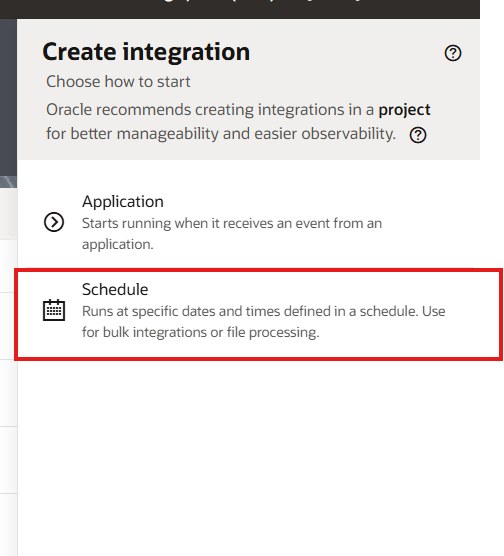
Create integration — choosing the Schedule option
Enter:
- Identifier – e.g. FS_01_SCHEDU_AND_DEBUG
- Version
- Package
Oracle recommends creating integrations inside a project for better manageability and observability.
2) Add a Logger for Debugging
On the canvas, drag a Logger action right after the Schedule trigger. This writes messages to the activity stream and diagnostic logs so you can confirm the integration actually ran, and when.
Log options:
- Always
- When tracing level is set to Audit — keeps logs clean in production, and you can turn on Audit tracing later if you need to troubleshoot
For the log message, you can build an expression instead of a static string, for example to log the schedule’s start time:
concat(‘Start Time by FS ‘, $schedule/ics:startTime)
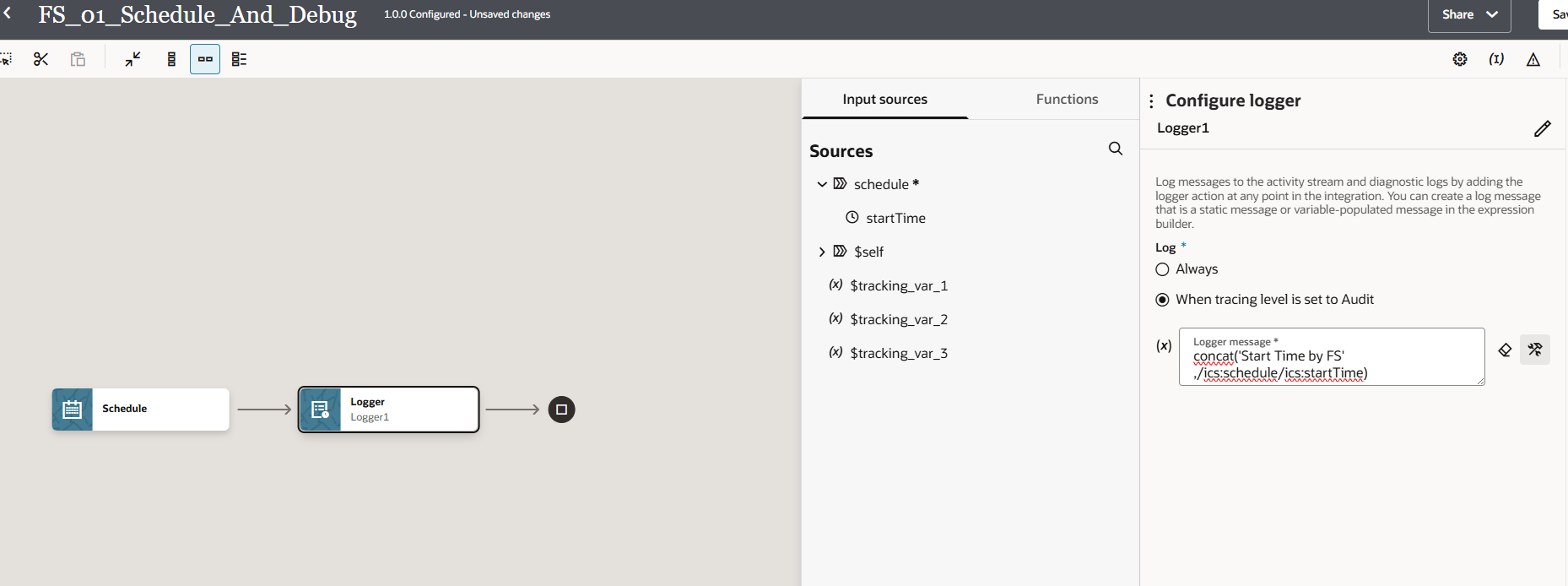
Logger action configured after the Schedule trigger
3) Configure the Schedule
Activate the integration, then from the ⋯ menu select Schedule.
Simple Recurrence
- Frequency (hours/minutes, daily, weekly, etc.)
- Effective from/until dates
- Time zone
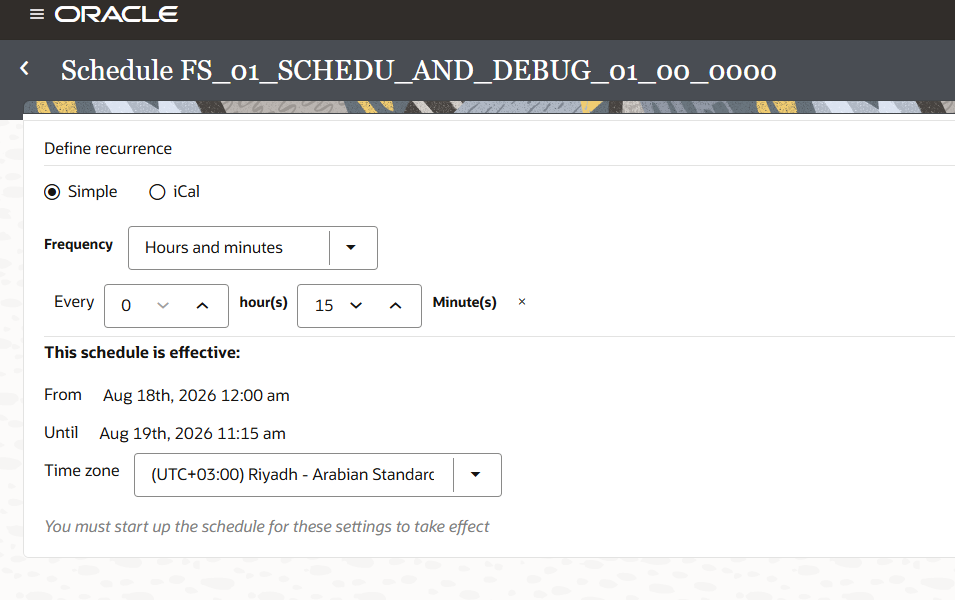
Simple recurrence — frequency, effective window, and time zone
You must click Start on the schedule for it to actually run — saving alone does not activate it.
iCal Recurrence
For anything beyond a fixed interval, switch to iCal and enter an RRULE expression directly, e.g.:
FREQ=WEEKLY;INTERVAL=2;BYDAY=FR;BYHOUR=23;
Click Validate expression before saving.
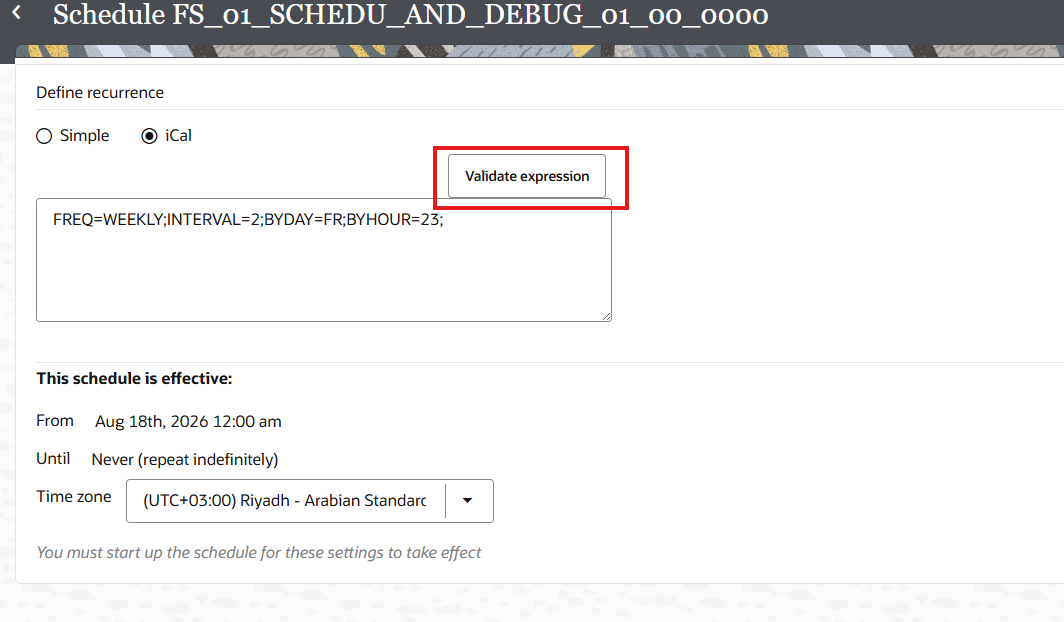
iCal recurrence with Validate expression
AI-Generated iCal from Natural Language
OIC can also generate the iCal expression for you. Click iCal, type the schedule in plain English, and click Validate. Examples:
| Entering the Following Natural Language Text… | Generates This iCal Expression… |
| Run the schedule every two weeks on Friday at 11 pm | FREQ=WEEKLY;INTERVAL=2;BYDAY=FR;BYHOUR=23; |
| Run on the 1st, 10th, and 15th days of the month at 5:15 AM, 10:15 AM, 3:15 PM, and 8:15 PM | FREQ=MONTHLY;BYMONTHDAY=1,10,15;BYHOUR=5,10,15,20;BYMINUTE=… |
| Run daily at 5:30 PM every ten minutes until 7:30 PM | Multiple chained FREQ=DAILY rules with BYHOUR / BYMINUTE / BYSECOND |
Reference: Oracle docs – Define an Integration Schedule
AI-generated iCal expressions from natural language input
4) Start It and Check Future Runs
Click Start on the schedule. Status changes from Stopped to Running, and OIC lists the future instances for your selected time window (next 24 hours, next 6 months, etc.).
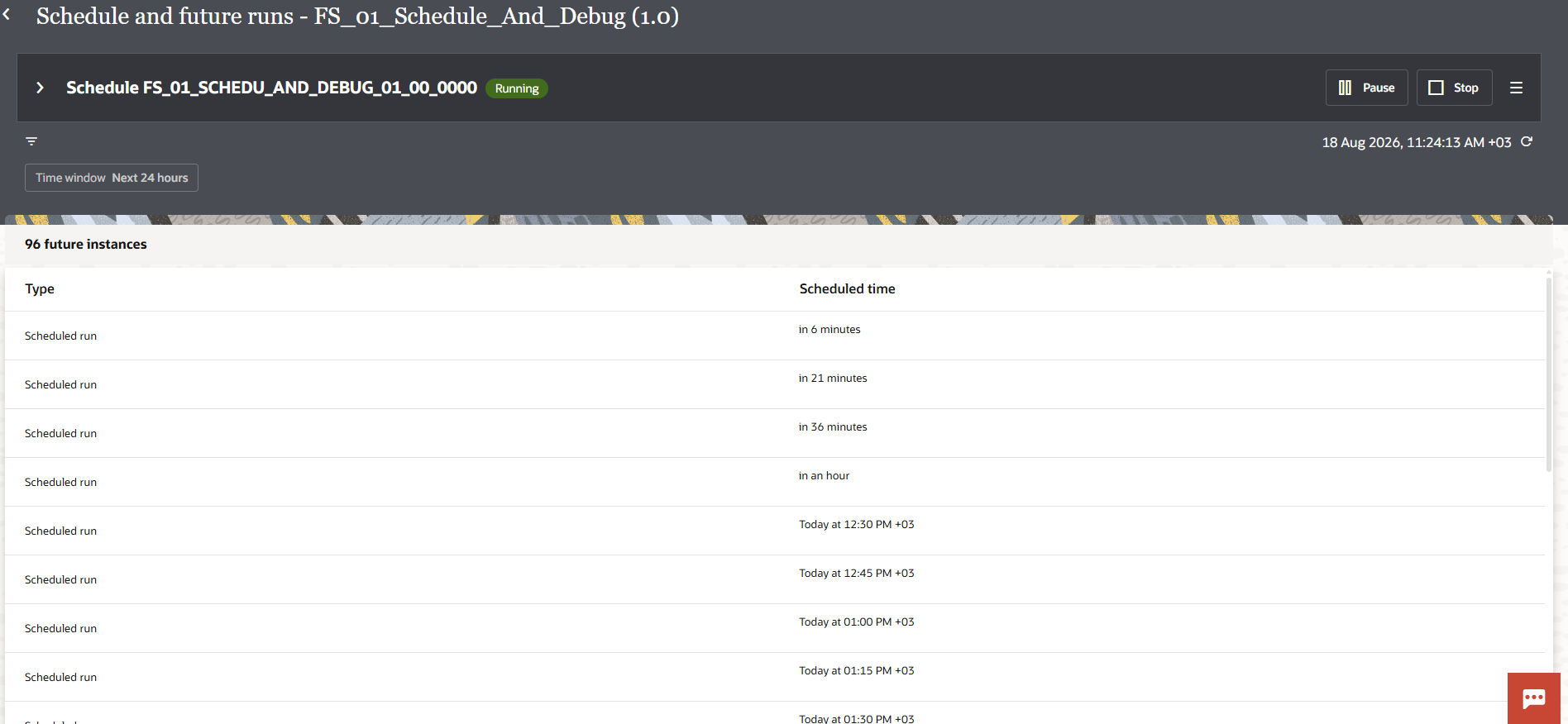
Future scheduled runs after starting the schedule
Always check this list after starting a new schedule — it’s the fastest way to confirm the run times are what you expected before the job runs unattended.
Summary
- Create the integration with a Schedule trigger
- Add a Logger right after the trigger for visibility
- Configure recurrence — Simple for fixed intervals, iCal (optionally AI-generated) for anything more complex
- Start the schedule and verify the future runs list